Android capture guide
SiteVerum Android records video and a GPS track together for processing in the portal. It requires Android 8.0 or later, camera access, precise location, and Google Play services for location.
Install SiteVerum 1.3.1
Section titled “Install SiteVerum 1.3.1”Download the signed APK and open it on your phone. If Android prompts you, permit installation from the browser or file manager you used. Open SiteVerum and grant camera and precise location access. Allow notifications if prompted.
Download SiteVerum Android 1.3.1 · Android source
If you are updating the official 1.3.0 release, 1.3.1 uses the same Android package ID and signing certificate. Back up your recordings before updating. The APK SHA-256 is 73e6ea30d34283458d56cdb6797226e935d4fff01dcfd53c692da482c32c8cd8.
Set recording quality and align the camera
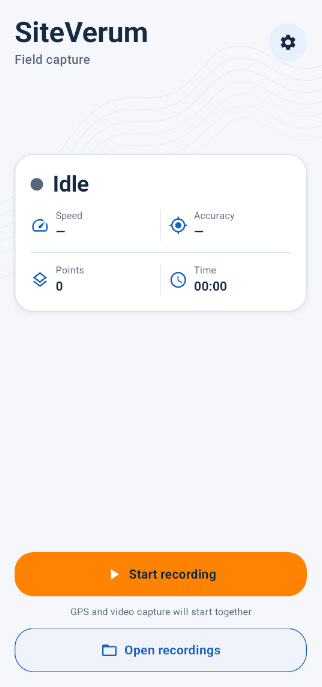
Section titled “Set recording quality and align the camera”- Tap the settings gear. Choose Standard or Optimized (smaller files).
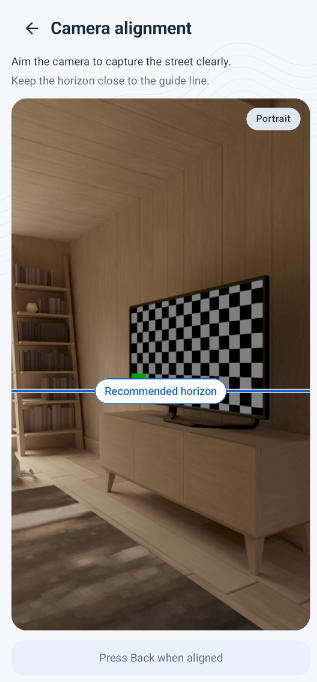
- Choose Camera alignment (preview) and mount the phone securely. Set the horizon for what you want to capture.
- Road surface and markings. Move the horizon higher in the frame so more of the road is visible.
- Poles and tall assets. Move the horizon lower in the frame so pole tops stay in view. Check that bases remain visible if they matter to the survey.
- Check framing with the phone in its recording orientation, then go back to the home screen.
Record the route
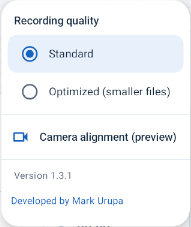
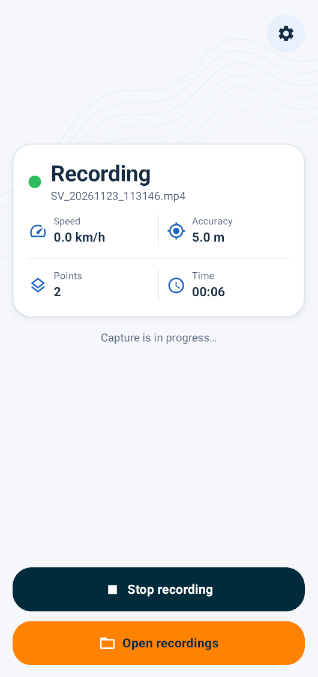
Section titled “Record the route”Tap Start recording. Check that the app shows Recording and is collecting GPS points. The status card shows speed, accuracy, point count and elapsed time. Recording can continue in the background while you use a navigation app. When the route is complete, return to SiteVerum and tap Stop recording.
Review and share recordings
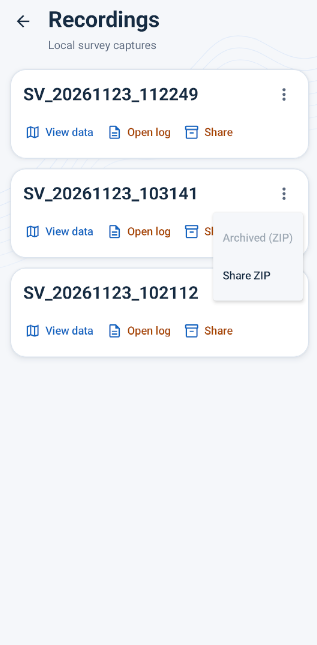
Section titled “Review and share recordings”- Tap Open recordings. Use View data or Open log to inspect a session.
- Tap Share to share the MP4 and LOG separately. For a single archive, open the session’s three-dot menu, choose Archive (ZIP), then choose Share ZIP when the archive is ready.
- Import the recording into the portal as a ZIP or as a matching MP4 and LOG with the same base filename.